When hosting an event, sharing photos should be easy, but protecting your privacy is just as important. Balancing an open, friction-free upload experience for guests while keeping control of who can modify your gallery settings requires the right security system.
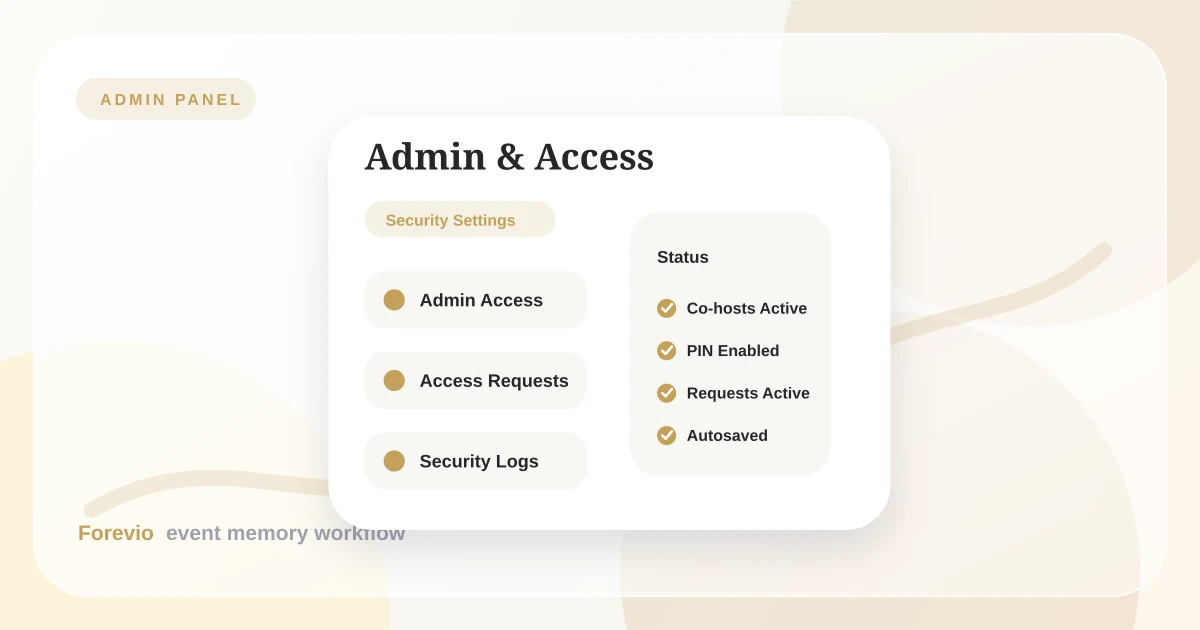
In Forevio, the control center for securing your digital keepsake box is split into four specialized tabs within the Admin Panel: Admin Access, Access Requests, Security, and Users. Together, these features give event hosts, planners, and couples complete control over co-hosting privileges and guest-level verification.
This guide will explain how to configure co-host access, manage private event settings, approve guest uploads, and restrict or block individual users to keep your shared event gallery private and secure.
Security & Moderation
Complete Authority Over Your Collaborative Album
Review queue
32 new uploads
Controls
Navigating to Your Security Dashboards
When you enter the Forevio Admin Panel, the sidebar serves as your command center. Beneath the core event settings, you will find four primary options dedicated to access management and system security:
- Admin Access: This is where you configure secondary co-administrators for your event by inviting them via email.
- Access Requests: This is where you review, grant, or revoke guest portal access requests in real-time.
- Security: This is where you manage gallery privacy, downloading controls, and guest uploads approval.
- Users: This is where you list guests, restrict upload actions, or block accounts from participating.
Any modifications made within these tabs are saved automatically by Forevio, keeping your settings secure without needing manual save buttons. The integration of the Admin Access & Access Requests dashboards allows hosts to stay organized and secure on the day of the event.
Admin Access: Collaborating with Planners & Co-Hosts
Running a wedding or large corporate event is rarely a one-person job. You will likely want a wedding planner, a best man, or a corporate coordinator to help manage the details. The Admin Access tab is designed exactly for this delegation.
Rather than sharing a single login (which compromises account security), Forevio allows you to grant specific co-host access via separate email invitations.
Inviting Co-Administrators
Under the Admin Access tab, event owners can input the email addresses of their trusted partners.
- Adding Admins: Type in the email addresses (separated by commas or spaces) and press "Add". Invited emails are instantly registered to help manage the event.
- Multiple Admins Plan Requirements: The ability to add secondary co-administrators is available on premium plans. If you are on the Free plan, this option will display a badge prompting you to upgrade to a premium plan to unlock multiple administrators.
- Revoking Access: If you need to remove an admin, simply click the "X" button next to their email badge, instantly removing their ability to edit settings.
Access Requests: Managing the Guest Entry Queue
If you configure your gallery to be private, guests who scan the QR code cannot view or upload photos immediately. Instead, they must submit a request. The Access Requests tab is your real-time command center for managing these entries.
Real-Time Approval Interface
The Access Requests tab provides a live dashboard that syncs instantly:
- Pending Count: A prominent badge at the top shows the exact number of pending requests waiting for your approval.
- Request Details: For each request, the panel displays the guest's profile photo, display name, email address, and the date the request was submitted.
- Grant Access: Click the green "Grant Access" button to instantly approve the guest. They are immediately taken to the active upload portal.
- Revoke Access: If an unauthorized person requests access, click the red "Revoke" button to deny their request, locking them out of the gallery.
Security: Managing Privacy, Moderation, and Downloads
The Security tab contains the master switches that define your guest-facing gallery experience. These controls are split into three major pillars:
1. Privacy Controls (Private Event Switch)
The Private Event switch determines whether your event is public or restricted:
- Public (Default): Anyone who scans the event QR code or visits the URL link can view the gallery and upload photos.
- Private: Restricts viewing privileges. Uninvited guests must request access, and their accounts will appear in your Access Requests queue.
2. Guest Uploads (Require Approval Switch)
The Require Approval switch controls live moderation.
- Enabled: Any photo or video uploaded by a guest goes into a hidden moderation queue. It will not appear on the live slideshow or the guest-facing feed until you or a co-host manually approve it.
- Moderation Tools: This feature requires the premium Moderation package. If disabled, all guest photos go live instantly.
3. Media Permissions (Allow Downloads Switch)
The Allow Downloads switch protects your media assets.
- Enabled (Default): Guests can download any photo or video from the shared gallery.
- Disabled: The download button is hidden for all general guests, preventing unauthorized saving of photos (Admins can always download the original, uncompressed files). This is perfect for professional photographers using Forevio to display preview galleries.
Users: Auditing and Moderating Individual Guests
Even with public settings, you may occasionally need to manage individual guest behavior. The Users tab lists everyone who has interacted with your event gallery.
Guest Account Controls
The Users tab shows a detailed index of all participants, including guest names, emails, and account status. You have two levels of individual moderation:
- Restricting Users: If a guest is uploading off-topic media, click "Restrict". Restricting an account disables their upload capabilities while still letting them view the shared gallery. Click "Restore" to lift the restriction.
- Blocking Users: For severe moderation issues, click "Block". Blocking an account signs the user out and completely bars them from accessing the event, preventing both viewing and uploading.
- Historical Records Indicator: Forevio automatically identifies guests who have uploaded photos in the past but do not have active sessions. These accounts are labeled with a history icon, allowing you to audit guest logs even after the event has concluded.
Choosing the Right Security Level for Your Event
Security needs vary wildly depending on the nature of the celebration. To help you choose the best configuration, use this decision matrix based on event type and size:
Best Practices for Admin Access & Access Requests
To keep your digital album secure and running smoothly on your big day, keep these professional tips in mind:
- Invite co-hosts early: Do not wait until the wedding day to set up your co-hosts. Invite your planner or best man during prep week so they can verify their access and test the moderation panel.
- Designate an access helper: If you run a private event, designate a helper (like a coordinator) to monitor the Access Requests queue during the reception so guest requests aren't left waiting.
- Clear up the feed post-event: Use the Users list to review upload histories and restrict any spam accounts to keep your final gallery clean.
By configuring your security options ahead of time, you can confidently collect guest photos and videos while maintaining complete control over who can view, upload, and manage your private event gallery.
Related reads: Inside the Event Details tab, How a floating menu maximizes uploads, and Why Forevio is the best way to collect event photos.
Quick answers
Frequently asked questions
What is the difference between Admin Access and Access Requests in Forevio?
Admin Access lets you invite co-hosts or planners to edit settings, while Access Requests is for gating and approving guest uploads for privacy.
How do I approve a guest's request to upload photos to my gallery?
Go to the Access Requests tab, check the list of pending requests, and tap 'Approve' to whitelist their email or device ID instantly.
Can I require a PIN code for guests to view or upload to the album?
Yes. Under the Access Requests & Security tab, you can enable PIN code authentication to prevent unauthorized uploads from non-invited guests.