When hosting an event, you want every touchpoint to feel cohesive, personal, and professional. From the physical invitation to the digital photo album, alignment is key.
In Forevio, the control center for your collaborative digital album is the Admin Panel. It's designed to give event hosts, couples, and planners the exact tools they need to tailor the guest experience. Today, we’re taking an in-depth look at the foundational block of this dashboard: the Event Details tab.
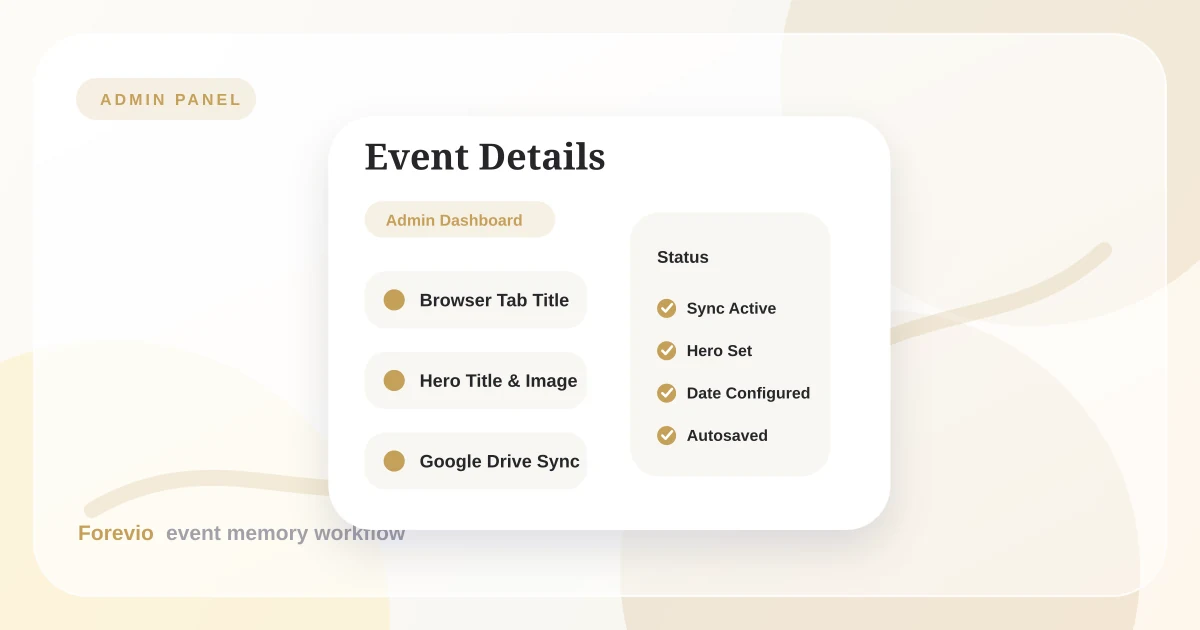
This tab is where you define the identity of your digital album, customize how it appears in browser tabs, configure the main hero presentation, set the date, and even connect to external storage engines.
Dashboard Configuration
The Control Center for Your Digital Keepsake Box
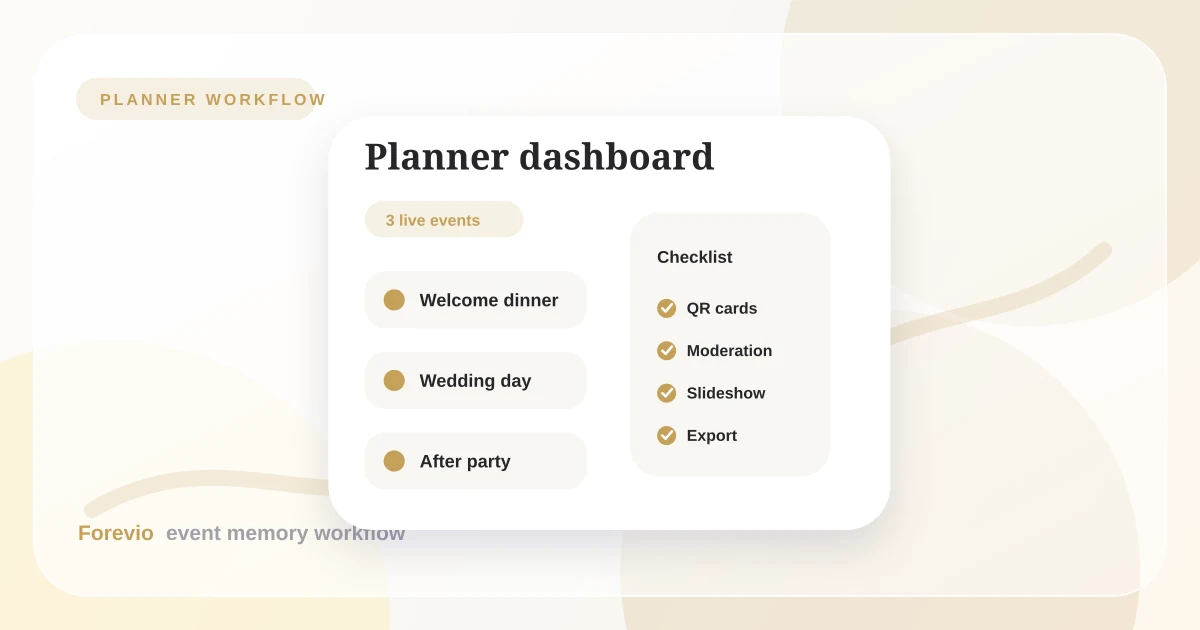
Events
3 live galleries
Delivery checklist
Organizing Your Settings with the Navigation Sidebar
When you open the Admin Panel, you are greeted by a clean, dark-themed navigation sidebar. This sidebar acts as your map, housing the key settings categories that govern your digital album.
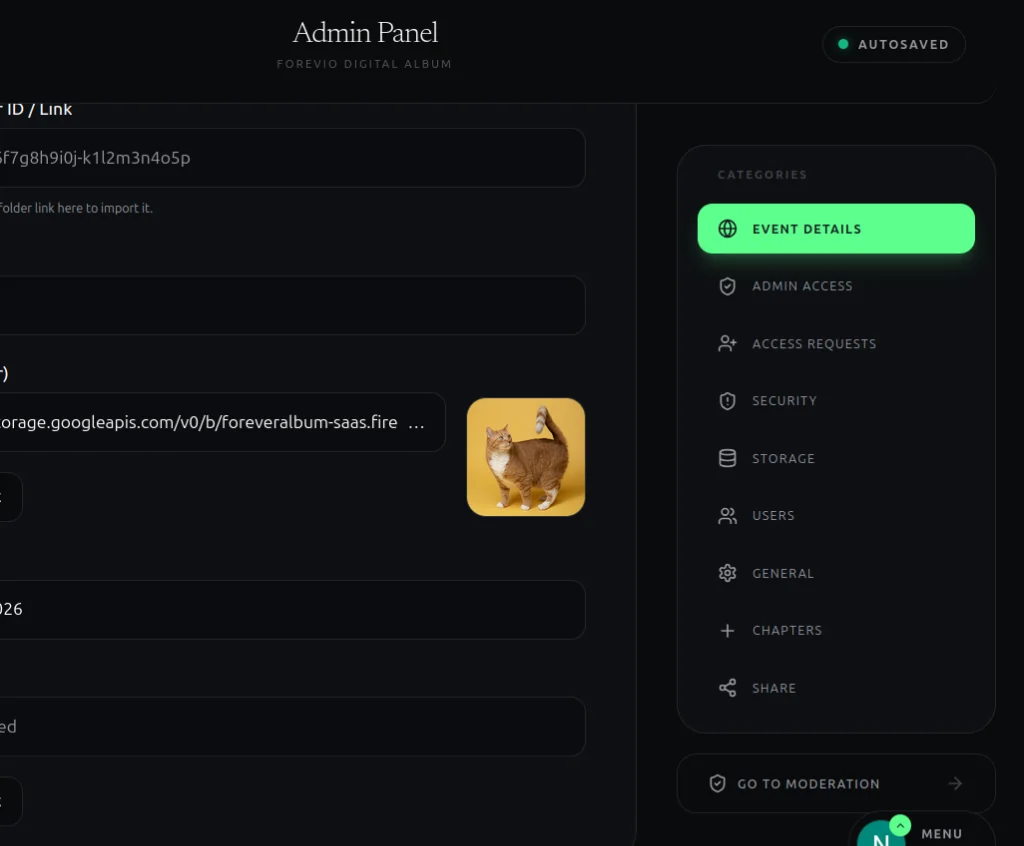
At a glance, you can navigate between:
- Event Details: Your primary setup (title, dates, hero banner, and file sync).
- Admin Access & Users: Control who can edit the settings or view logs.
- Access Requests & Security: Manage guest white-listing, private pins, and pending requests.
- Storage & Chapters: Monitor photo/video quotas and organize files by key event milestones (e.g., ceremony, reception).
- Share: Access QR codes and signage generators for guest onboarding.
At the bottom of this sidebar, a dedicated Go to Moderation link lets you instantly jump to the guest upload review queue to approve or hide incoming photos. Additionally, the green Autosaved indicator in the header ensures that any changes you make in the forms are synchronized instantly—no save button required.
Anatomy of the Event Details Settings Form
Let's break down the configuration fields within the Event Details settings form and see how they influence the guest experience.
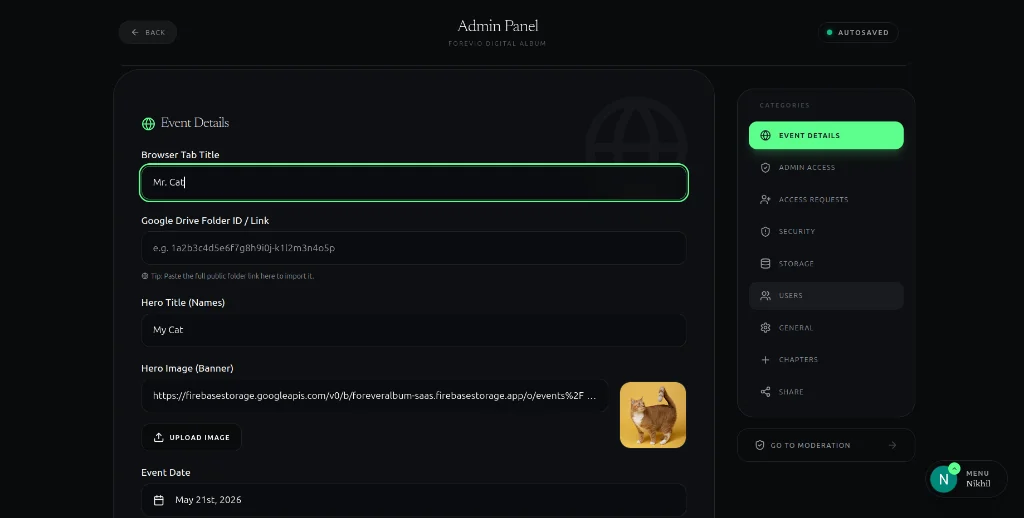
1. Browser Tab Title
Set this as the first impression label for your event page. Whatever you type here appears as the browser tab title when guests open your album link.
Why this matters
- Guests instantly recognize they opened the correct event page.
- Personalized naming looks more premium than a generic product label.
- It makes your tab easier to find among many open tabs on mobile.
Pro tip
Use a specific format like "Sarah & John's Wedding | Forevio" instead of a short generic title.
2. Google Drive Folder ID / Link
This field powers your cloud sync workflow. Add a public Google Drive folder URL (or folder ID) to connect your Forevio album with your Drive destination.
What happens after linking
- Forevio periodically pulls compatible media from the linked folder.
- You can centralize photographer assets, pre-event graphics, and team uploads.
- You avoid repeated manual downloading and re-uploading between tools.
3. Hero Title (Names)
Think of this as your event’s headline. The Hero Title is the bold text shown on your public gallery banner.
Best use cases
- Couple names for weddings.
- Family name for reunions.
- Brand/event title for corporate activations.
It should be short, clear, and emotionally recognizable at a glance.
4. Hero Image (Banner)
Your Hero Image defines the visual mood of the album. It appears behind the Hero Title and anchors the entire guest-facing experience.
Design checklist
- Choose a high-resolution photo with a clear subject.
- Prefer images with visual contrast so white overlay text remains readable.
- Avoid overly busy backgrounds that compete with the title.
Use the Upload Image button to test options quickly. The live preview lets you validate text readability and composition before your guests see the page.
5. Event Date
This field controls timeline accuracy across your event experience. Once selected (for example, May 21, 2026), the date becomes the canonical reference for the album.
Where it helps
- Keeps uploads ordered in a meaningful chronological timeline.
- Displays the right event date on the public page.
- Supports date-based automations and scheduling logic.
Best Practices for Event Details Configuration
To get the most out of your Forevio Event Details setup, keep these tips in mind:
- Pick a cohesive Hero Banner: Choose a banner photo that has a clean focus or is slightly darker so that the overlaying white text of the Hero Title is easy to read.
- Link Google Drive early: Set up your Google Drive folder import before the event. That way, any early setup photos or photographer sneak-peeks are already synced and waiting in the album when the event goes live.
- Personalize the Browser Title: Instead of just naming it "Our Wedding," use your names or a unique title like "The Henderson Reunion 2026" to make the browser tab easy to spot on guests' phones.
By taking a few minutes to configure the Event Details tab, you establish a polished, personalized interface that welcomes your guests and keeps your media pipeline organized from the very first scan.
Next reads: Event photo sharing for planners, Building Forevio in public, and Why Forevio is the best way to collect event photos.
Quick answers
Frequently asked questions
What is the Google Drive Folder Link option in Forevio?
It allows you to link a public Google Drive folder directly to your event album. Forevio will automatically import photos and videos from that folder, saving you time if you already have media collected there.
Can I customize the title of the browser tab for my guests?
Yes. Under the Browser Tab Title setting, you can define exactly what name appears on the browser tab (e.g. 'Sarah & John's Wedding') when guests scan the QR code to view or upload.
How do I change the main banner of my public event album?
In the Event Details tab, upload a new image in the 'Hero Image (Banner)' field. This image serves as the high-impact visual background for the header on your public event album page.